
(Never use style H1!!)
Styles are available in the dropdown under paragraph. (style:bold)
Edit a page on the website (called an Article): (style: H2)
Go to Content then Article Manager
Type into the article text.
If you want to use data from a MS-Word Doc: (style: using the bold key)
Select the text from your word doc.
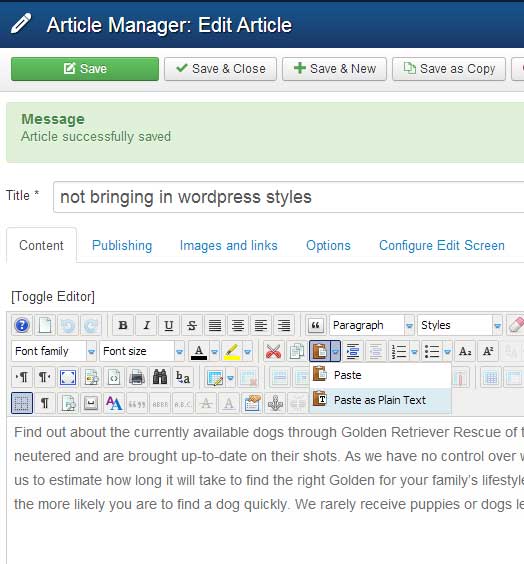
Paste as plain text!!! see below:
Add A Dog to be adopted: (style:h3)
Components then Hikashop then products
Click on available for Adoption
Click on new button (green button)
Add text in description – note adding from MS-Word comments above- paste as plain text!!!
Go down to images and add as many images as you like. The first image is the main. you can reorder the images at any time.
images should be 300×300 (approx)
Move A Dog to adopted: (style:h4)
Components then Hikashop then products
Click on available for Adoption
Cliclk on dog
in top right box called categories, delete the category for available for adoption
add the category adopted dogs.
Add a Naming Tribute (style: H2)
Components then Hikashop then products
Click on naming tributes
Click on new button (green button)
Add text in description – note adding from MS-Word comments above- paste as plain text!!!
Follow example of previous ones – 12 pt. bold dog name, regular text, 10 pt. bold owner name, then plain text date of posting.
Go down to images and add as many images as you like. The first image is the main. you can reorder the images at any time.
images should be 200×200 (approx)
Add a Member Newsletter
Change name of .pdf file to have no spaces, match format of past entries
Upload to member-news folder in Media Manager
Under the modules search for “download” – it is titled Download Area, add entry to top (easiest to copy, change)
Under the modules search for “download” – it is titled Download Area
Add a Volunteer Newsletter
Change name of .pdf file to have no spaces
Upload to Newsletters folder in Media Manager
Find Newsletters under Module manager, add entry to top (easiest to copy, change)
Add a Golden Angel (style: H2 and the bold key)
Components then Hikashop then products
Click on golden angels
Click on new button (green button)
Add text in description – note adding from MS-Word comments above- paste as plain text!!!
Go down to images and add as many images as you like. The first image is the main. you can reorder the images at any time.
images should be 200×200 (approx)
Add an Event (style:h3)
Components then Event Booking then Events.
Edit Slider on Home page (style: bold)
Components then Smart Slider 2
Click on Golden Retriever Showcase at left.
I think you will be better duplicating a slide and changing it instead of adding a new slide.
Words on slides are created thru html and more style sheets.